How to Edit a PDF on iPhone

On iPhone, Markup and the Preview app can draw, highlight and add a signature, but they add marks on top rather than changing the words already in a PDF. To edit the text, open Pdfable in your mobile browser, tap Choose PDF, tap a line, type, then tap Export. No app to download.

Maintained by the Pdfable team

or drag a file anywhere on this pageFiles stay on your device

Why can't I edit PDF text with Markup?

Markup is Apple's annotation layer. Apple's support page puts it this way: "With Markup, you can draw or add text on screenshots and photos, select different opacity and font thickness, and even add a signature to a PDF document." It shows up inside apps such as Mail, Messages and Photos.

Every Markup tool, from the pen, highlighter and pencil to text boxes, shapes, the loupe and signatures, places something new on top of the page. None of them selects an existing sentence and retypes it. A text box can cover a wrong word, but the wrong word is still there underneath.

iOS 26 also brought the Preview app to iPhone. Apple's guide lists what it does with a PDF: copy, highlight, underline or strike through text; add stickers, signatures, shapes or text; scan documents; and lock a PDF with a password. It is a capable viewer and markup tool, and rewriting the existing text isn't on that list.

Books, Apple's reading app, can open PDFs you receive in Mail or Messages too, and marks them up with drawing and annotation tools.
How to edit a PDF on iPhone in 4 steps

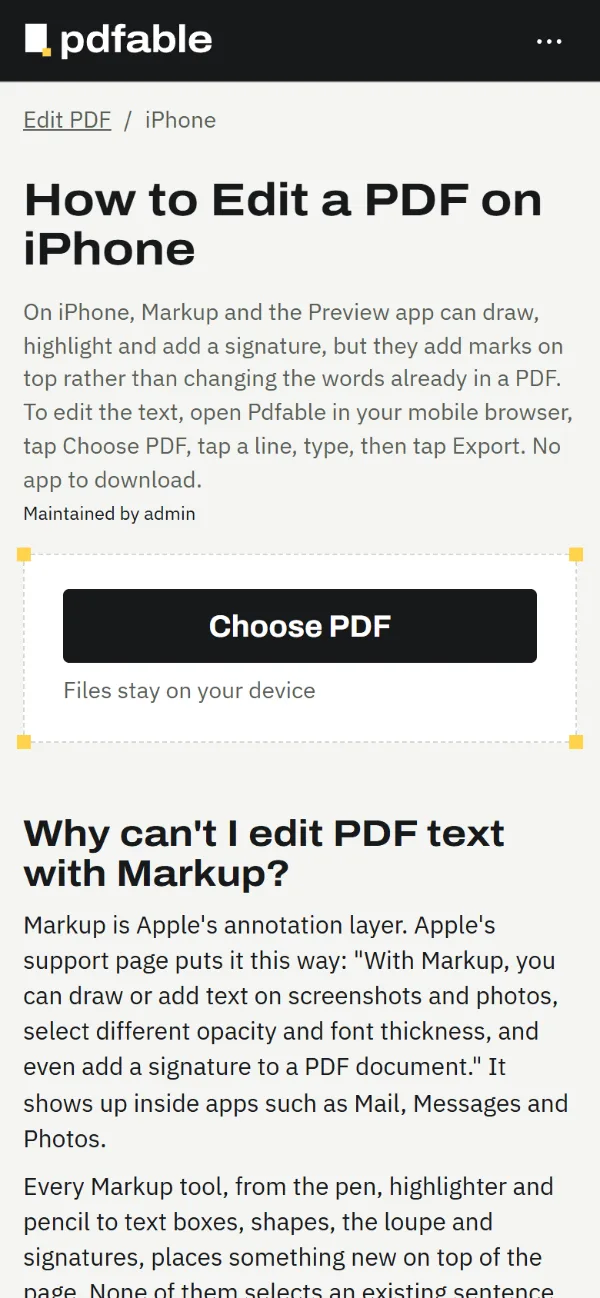
  1. Tap Choose PDFOpen this page in your phone's browser and pick the PDF saved on your phone.
    Choose PDF button on Pdfable in a phone browser
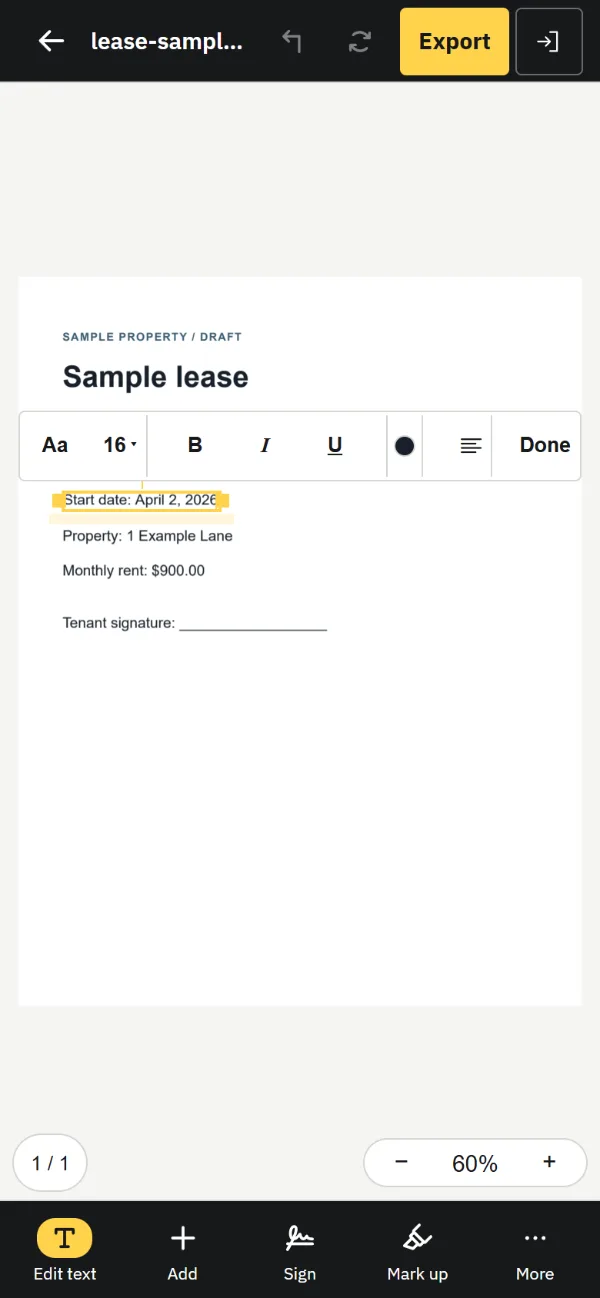
  2. Tap a line and typeEdit text is the first button in the bottom toolbar. Tap a line, type, and use the floating Aa bar for size, bold, italic, color and alignment.
    Pdfable editor on a phone, with a line of a sample lease selected and the floating Aa formatting bar
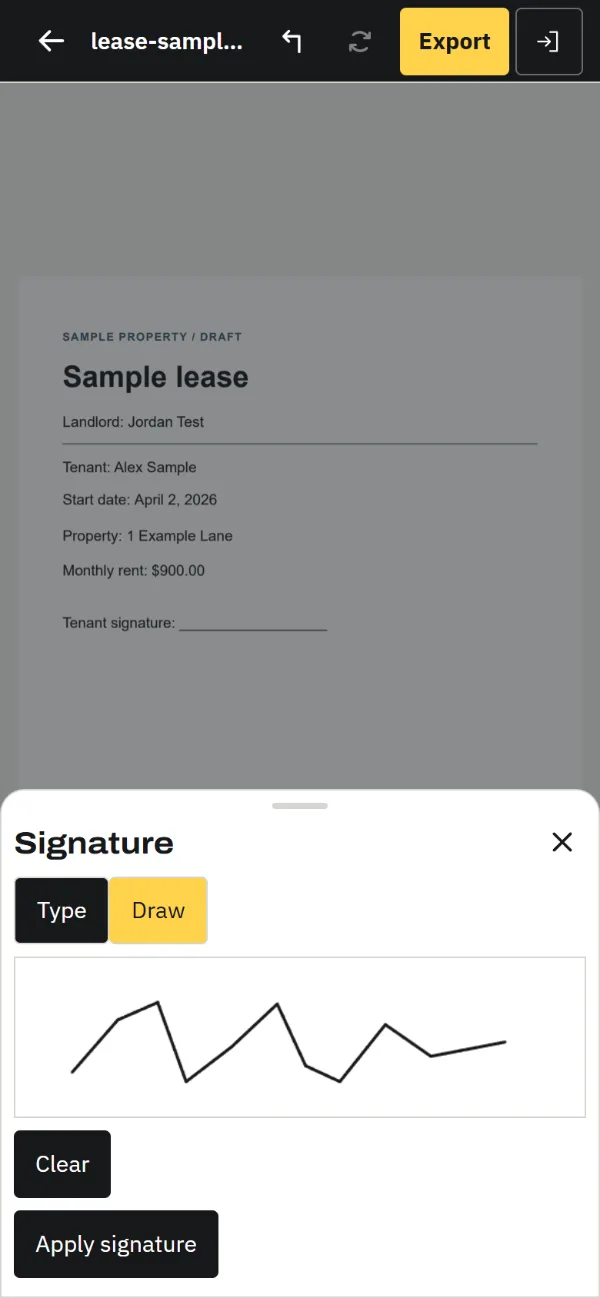
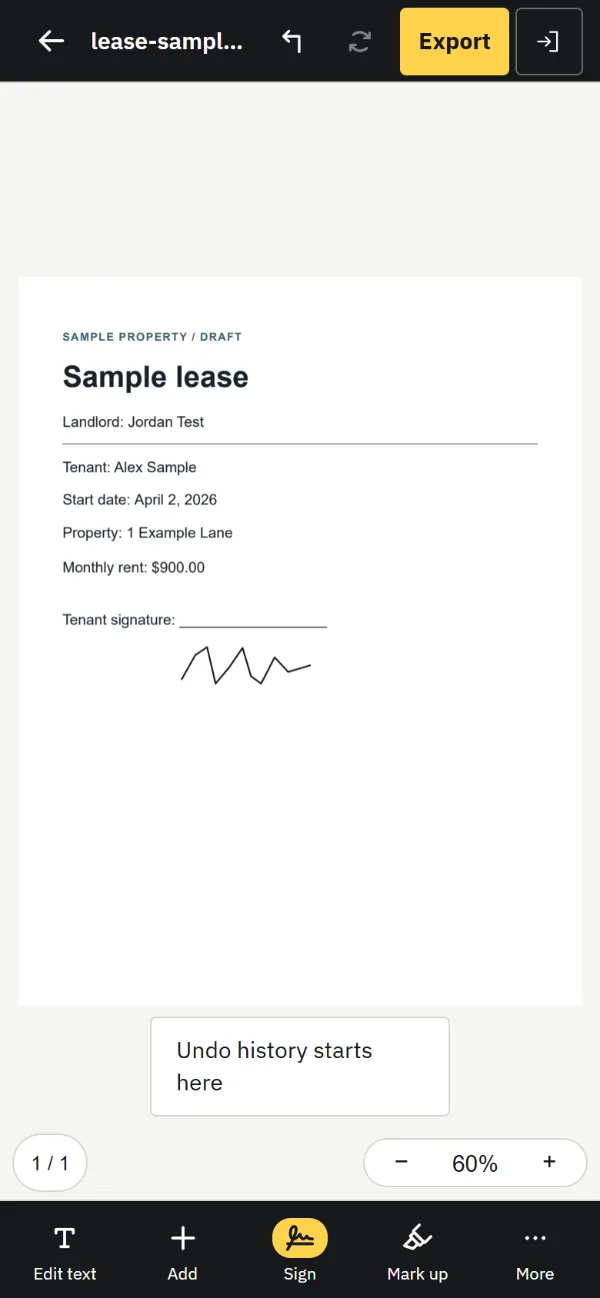
  3. Sign with your fingerTap Sign, type your name or draw it with your finger, then drag it into place.
    Pdfable Sign panel on a phone, with a sample signature drawn
  4. Tap ExportExport in the top bar downloads "your-file (edited).pdf". Your original stays untouched.
    Pdfable on a phone, showing the Export button and the bottom toolbar

Markup, Preview, Books or Pdfable?

Where you find itWhat it addsThe existing wordsDownload needed
MarkupInside Mail, Messages, Photos and other appsDrawings, text boxes, shapes, signaturesStay as they areNo, part of iOS
Preview (iOS 26)Apple's Preview appHighlights, underlines, stickers, signatures, shapes, textStay as they areNo, Apple app in iOS 26
BooksApple's Books appDrawing and annotation toolsStay as they areFree from Apple
PdfableThis page, in your mobile browserText edits, images, stamps, notes, highlights, signaturesTap a line and typeNo

Edit a PDF on iPhone

Pdfable runs in the browser on your iPhone, so there is no app to install. The page opens a full editor laid out for one hand: the PDF fills the screen at Fit width, and a five-button toolbar sits at the bottom.

  • Edit text: tap any line to change the words already in the PDF.
  • Add: insert a text box, an image, a stamp or a note.
  • Sign: type your name or draw your signature with your finger.
  • Mark up: highlight, underline, strike out, draw freehand, or redact.
  • More: page tools (rotate, move, delete), shapes, Find & replace, Print and document options.

When you select text, a floating bar appears with size, bold, italic, underline, color and alignment, plus an Aa page for font and line spacing. Undo and Redo sit next to the file name. The zoom pill in the corner switches between Fit width, 100%, 125%, 150% and 200%. The bottom toolbar keeps Edit text, Add, Sign, Mark up and More within thumb reach, so most edits take one hand.

The PDF is edited on your iPhone and is never uploaded, which makes it a safe way to fix a lease, invoice or school letter on the go.

Edit a PDF on iPad

On a wider screen like an iPad, Pdfable switches to its larger layout: a full toolbar across the top (Edit text, Add text, Add image, Find & replace, Mark up, Signature, Stamp, Note, Shapes) and a Text panel for detailed formatting. It is the same editor you get on a computer, sized for touch.

Tap a paragraph to edit it, drag images into position, and draw a signature with your finger or a stylus. The extra room keeps the Text panel open beside the page, so detailed formatting takes fewer taps.

  • Toolbar: Five buttons at the bottom on iPhone; full toolbar across the top on iPad.
  • Text formatting: Floating Aa bar on iPhone; Text panel on iPad.
  • Saving: On both, Export downloads a new PDF.

Phone tips for signed and long documents

Two situations come up often on a phone. If the PDF was digitally signed, any text edit invalidates that signature, so the sender will need to sign the new version; How to edit a signed or secured PDF explains why. If the document is long or needs detailed layout work, the same steps work on a laptop: see How to edit a PDF on Mac or How to edit a PDF on Windows. Scanned a paper page into a PDF with Preview's Scan Documents? Open that PDF in Pdfable; if tapping a line selects nothing, choose Recognize text from More → Document.

If you get stuck

  • Choose PDF doesn't show your file. In the file picker, browse to the folder where the PDF is saved.
  • Tapping a line selects nothing. The page is likely a scanned image. Run Recognize text from More → Document first; see How to edit a scanned PDF.
  • The PDF asks for a password. Enter it in the Unlock PDF box and the document opens for editing.
  • You can't find the exported file. Open your browser's downloads list and look for "your-file (edited).pdf".

How to edit a PDF on iPhone: FAQ

How do I edit a PDF on my iPhone?

Open Pdfable in your mobile browser, tap Choose PDF and select your file. Tap any line to change the text, use Add, Sign or Mark up for everything else, then tap Export to download the edited PDF.

Can I edit a PDF directly on my iPhone without downloading an app?

Yes. Markup and the Preview app are built in and add drawings, text and signatures on top of the page. To change the words already in the PDF, open Pdfable in your phone's browser, tap Choose PDF, tap a line and type. There is no app to install, and no sign-up is needed to edit and download.

Can I change the text of a PDF on iPhone, or only mark it up?

You can change it. Markup and Preview add drawings, text boxes and signatures on top, while Pdfable edits the words already in the PDF: tap a line and type.

Does the Preview app on iPhone edit PDF text?

Apple's guide for Preview on iPhone lists highlighting, underlining and striking through text, plus adding stickers, signatures, shapes and text boxes. To rewrite the existing words, use Pdfable in your browser.

How do I sign a PDF on iPhone?

Tap Sign in the bottom toolbar, then type your name or draw your signature with your finger, and place it on the page. Tap Export to save the signed copy.

Can I edit a PDF on iPad?

Yes. On a wider screen like an iPad, Pdfable shows the larger layout with a full toolbar and a Text panel, and you can draw signatures with your finger or a stylus.

Why does my PDF's signature show as invalid after I edit it on my phone?

A digital signature covers the exact file that was signed, so any change breaks the match on any device. Make your edits, export, and have the new version signed again.

Ready to edit your PDF?

Published · Reviewed