What happens to a signature when you edit a PDF?
"Signed" can mean two different things, and it matters which one your PDF has.
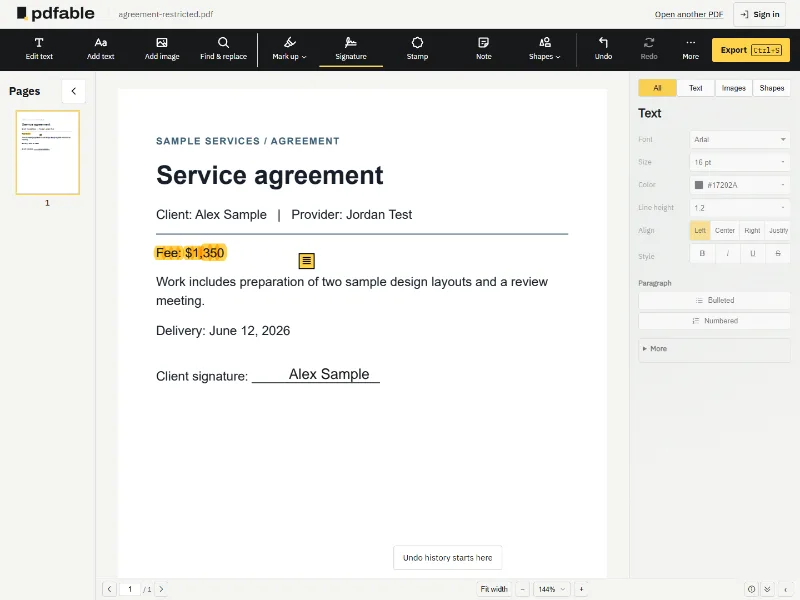
- A drawn or typed signature is a mark on the page, like a scanned autograph or a name in a script font. You can edit the rest of the document freely; the mark stays where it is.
- A digital signature is certificate-based. It records a fingerprint of the exact file at the moment of signing, and PDF readers such as Adobe Acrobat Reader check that fingerprint and show the signature status, often in a signature panel or banner.
Adobe's signature validation guide spells out what a reader checks: whether the signer's certificate is trusted, and document integrity, meaning "the signed content hasn't changed or that it has only changed in ways permitted by the signer." Microsoft Edge can also view and validate certificate-based signatures in PDFs.
Any change to a digitally signed file, even one character, means the fingerprint no longer matches, so readers report that the document was modified after signing. That is the signature doing its job, and no editor can keep the old signature valid. The right workflow:
- Ask the sender for an unsigned copy if you can, or open the signed one in Pdfable.
- Make your edits, highlight what changed, and export the new version.
- Send it back to be signed again, or sign it yourself with your signing service.
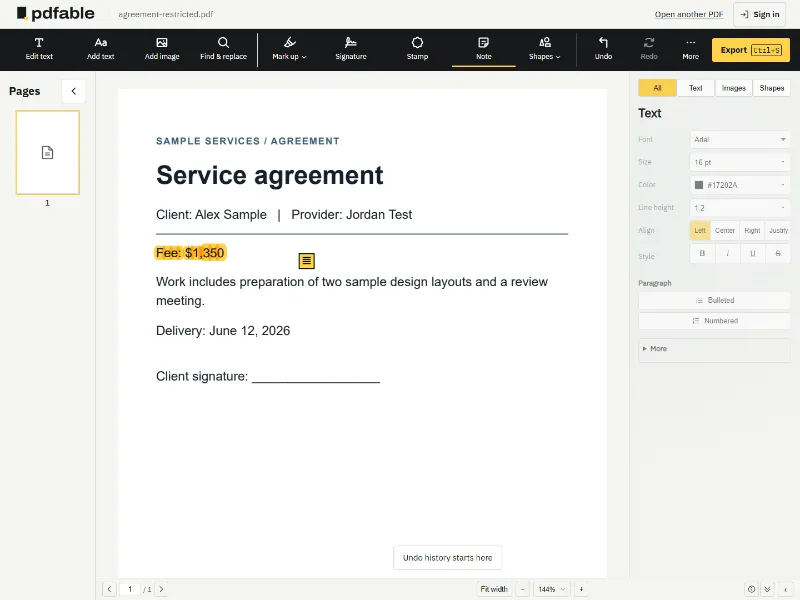
If the signature is only drawn or typed, you can edit around it and export as usual. Highlight or note what you changed so the other side can review it quickly.
Signature, open password or editing restrictions?
Signed and secured PDFs get lumped together, but they are three different things. Adobe describes two kinds of PDF password: a Document Open password, which you need to open and view the file, and a Permissions password, which restricts features such as printing, editing and copying. With a Permissions password alone, recipients don't need a password to open the document.
| What it is | Password needed to open? | In Pdfable | After you export |
|---|
| Digital signature | A certificate-based seal over the exact file that was signed | No | Opens; click and type | The old signature no longer validates; sign the new version |
|---|
| Password to open | Encryption that locks the whole file | Yes | The Unlock PDF box asks for it, then every tool works | Your copy opens without the password |
|---|
| Editing restrictions only | Limits set with a Permissions password, such as no editing or copying | No | Opens straight into editing | Your copy has no restrictions |
|---|
Only edit PDFs that you own or are allowed to change.
Edit a password-protected PDF
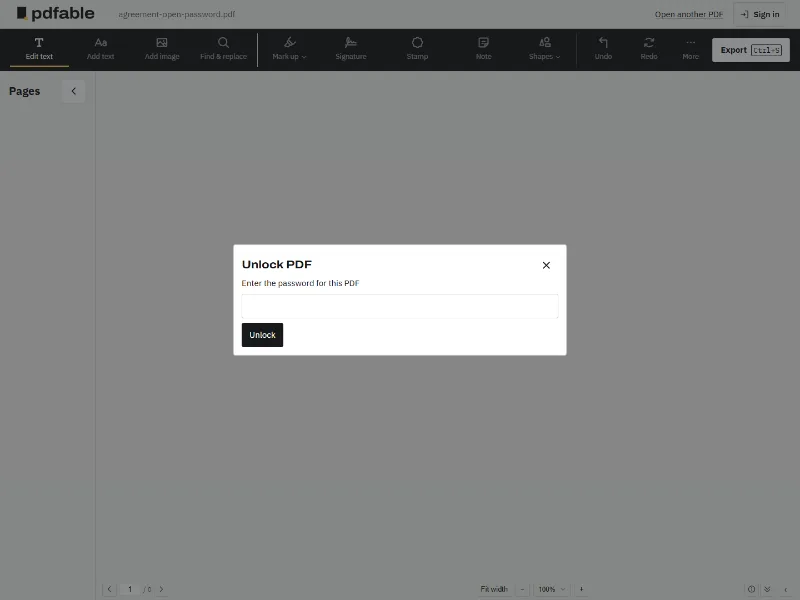
Secured PDFs come in two kinds, and Pdfable handles both. If the file asks for a password to open, Pdfable shows an Unlock PDF box. Enter the password and the document opens with every tool available: edit text, add images, mark up, sign and organize pages. The exported copy no longer needs the password, which makes it easy to share with the people who should see it.
If the file only restricts editing, copying or printing, it opens in Pdfable without a password, and your exported copy has no restrictions.
Forgotten an open password? Ask the person who sent the file for the password or an unlocked copy. Pdfable unlocks the file inside your browser, so neither the password nor the document is sent to a server.
Edit a signed PDF without Acrobat
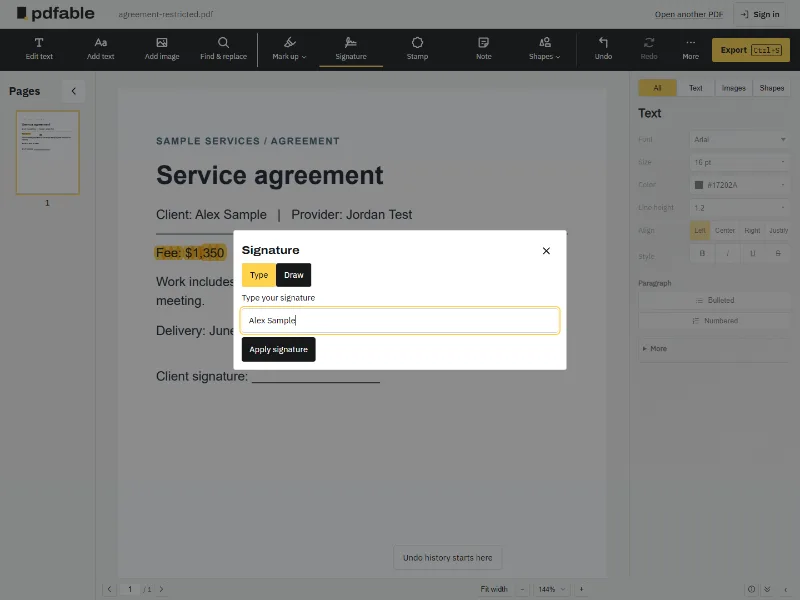
You don't need Adobe Acrobat to make the edits. Pdfable runs in the browser on your computer or phone, and the file never leaves your device. Change text in place, use Find & replace for names and dates, add your own typed or drawn signature with Signature, and permanently remove sensitive lines with Mark up → Redact before you send the new version out for signing.
If the signed copy you have is a paper scan, turn the scanned PDF into editable text first. For a tour of every tool, see Edit a PDF.
If you get stuck
- Wrong password. Pdfable tells you if the password did not open the PDF. Check capitalization and try again, or ask the sender.
- The document is a scan with a signature. Make the text editable with Recognize text first; see How to edit a scanned PDF.
- You just need to sign, not edit. Open the PDF, choose Signature, type or draw, place it, and export.
- More help: follow the guide for Windows or Mac.